Users
Create teammate accounts, assign roles, and manage what they can do.
This page covers how to get people into Novapulse and how to control what they can do. If you want the full breakdown of what each role can and can't do — including an interactive tool to look it up — head to Permissions.
Creating a user
Open Users at the organisation level (Desk) or inside a specific practice → Add (+).
You'll be asked for:
- Name — first and last.
- Email — their sign-in address.
- Password — an initial password (minimum 8 characters). Share this with them securely; they can change it after signing in or use Forgot password? on the login page.
- Phone — optional, used for SMS notifications.
- Designation — their job title shown to teammates (e.g. "Cardiologist," "Receptionist").
- Name misspellings — optional; alternative spellings the AI should match to this person. See Misspellings below.
- Role — what they're allowed to do. See Permissions for what each role grants.
- Practice — on the Desk, which practice they belong to (optional for hospital-wide roles).
- Workgroups — which workgroups they belong to (must be in the selected practice).
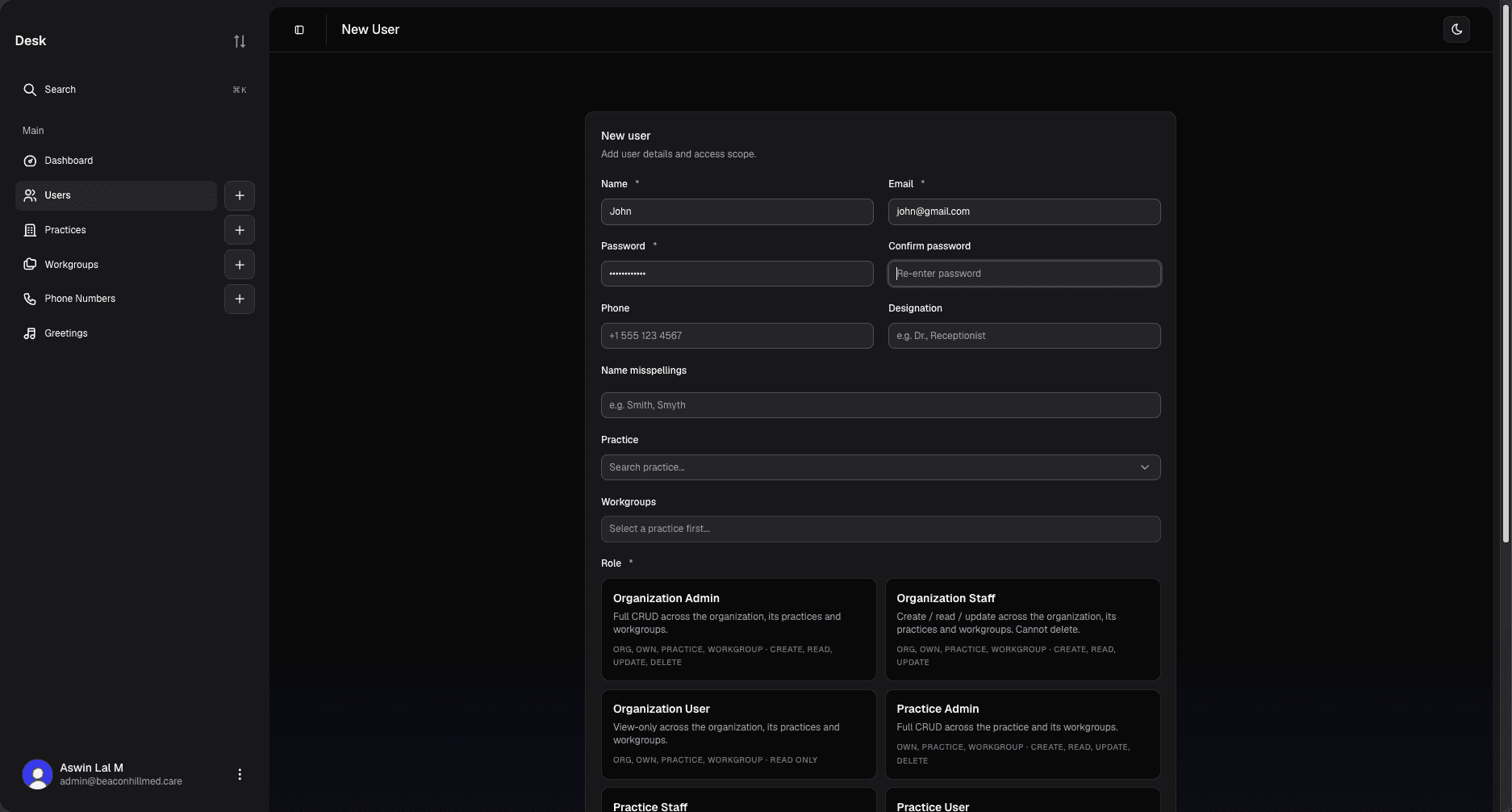
The account is active as soon as you click Create user. Novapulse does not send a welcome email — tell the new teammate their email and password, or have them sign in with Magic Link on the login page.
What "role" means
Every user has exactly one role. The role determines two things:
- The scope of what they can do — at the hospital level, the practice level, or the workgroup level.
- Which actions they can take — view only, edit, or full create/delete.
Roles are named in the format {scope}:{level}:
org:admin,org:staff,org:user— hospital-wide. Hospital admins are the most powerful role on the hospital side.practice:admin,practice:staff,practice:user— scoped to whichever practices the user belongs to.workgroup:admin,workgroup:staff— scoped to specific workgroups inside a practice.user— own-data only. The user can manage their own profile, see voicemails they're assigned to, and act on their own mentions, but nothing more.
For the full role-by-role breakdown and an interactive lookup tool ("what can a Practice Staff do?" / "what role do I need to delete a voicemail?"), see Permissions.
Designation
A user's designation is their job title as your team would write it — Receptionist, Cardiologist, Practice Manager. It's shown next to their name throughout the app, and it's also one of the inputs the AI uses to figure out who a voicemail is about. If a patient says "I need to speak to my surgeon," the AI checks designations and surfaces users whose designation contains surgeon.
Keep designations short and consistent across your team. Dr. or Mr. prefixes are fine.
Misspellings
A user's profile has a misspellings field — a list of alternative spellings or pronunciations of their name. The AI uses this when matching mentions in transcripts.
For example, if your colleague is Dr. Aishwarya Krishnan, patients might leave voicemails saying:
- "I need to speak to Dr. Ash"
- "Tell Dr. Aishu I called"
- "Dr. Krishnan's office?"
Adding Ash, Aishu, and Krishnan to her misspellings list means the AI catches all of these as mentions of her. This is one of the highest-leverage things a user can fill in — see Profile.
Changing what someone can do
Open the user → Edit → change their role, practices, or workgroups. Changes take effect on their next page load.
Some changes require specific roles to perform:
- Changing a role from
org:admin→ anything else, or toorg:admin, requires a Hospital Admin. - Adding or removing a user from a practice requires a Hospital Admin, Hospital Staff, or that practice's admin.
- Adding or removing a user from a workgroup requires anyone with admin rights at the workgroup, practice, or hospital level.
Again — see Permissions for the full matrix.
Removing a user
If a teammate leaves, open their profile → Remove from hospital. This:
- Removes them from every practice and workgroup.
- Revokes their session immediately.
- Keeps their historical comments, mentions, and assignments intact for audit.
You can create a new account for them later under the same email if needed.