Settings
Configure how a practice behaves: greetings, auto-tagging, patient messaging, and more.
Settings in Novapulse live at the practice level. There's a settings page for each practice, and separate settings for workgroups, users, and your own profile. There is no single hospital-wide settings page. Anything that applies to the whole hospital is set up with the Novapulse team during onboarding.
Practice Admins control their practice's settings. Hospital Admins and Hospital Staff can change them too. Everyone else has read-only access.
Opening practice settings
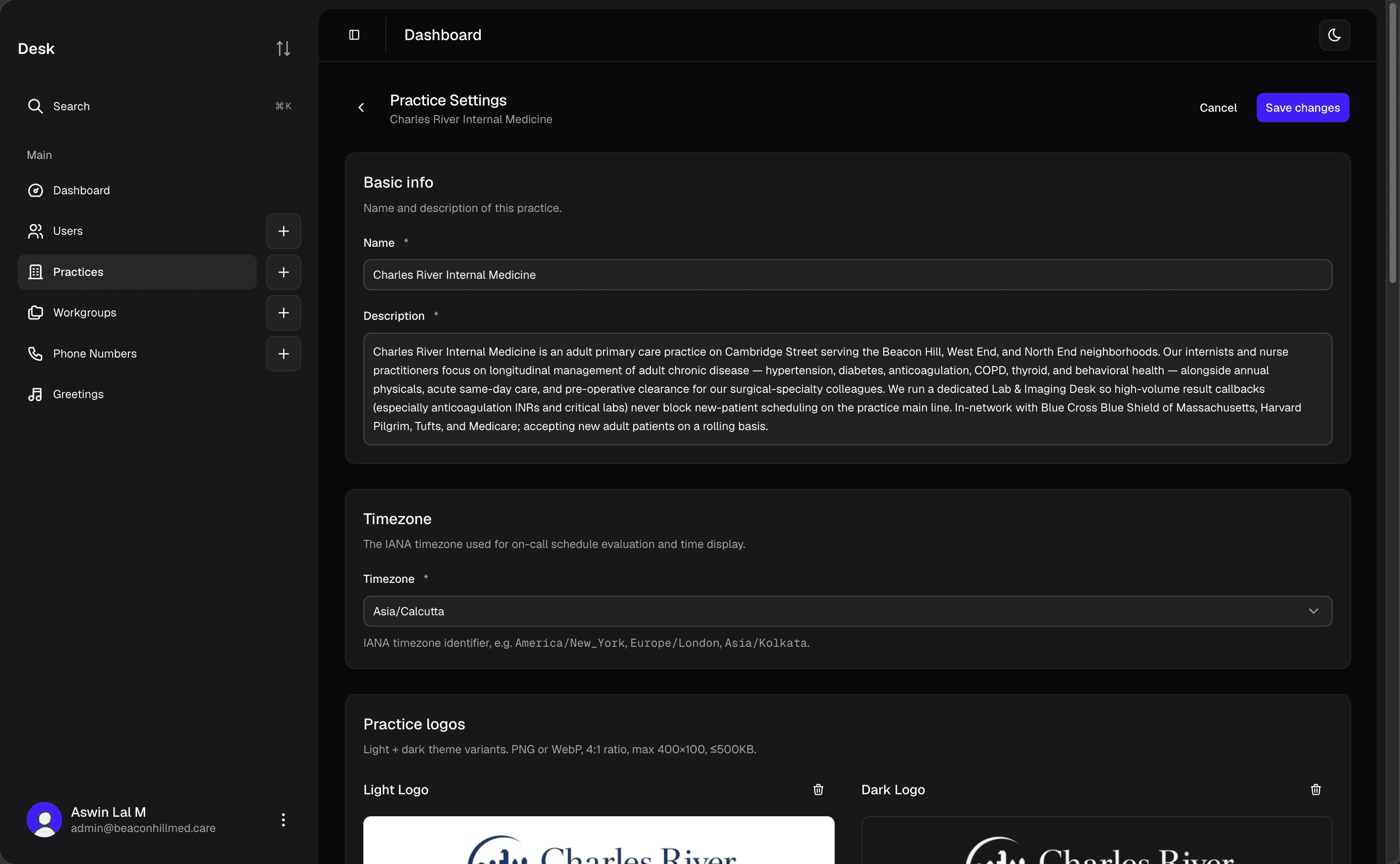
Open a practice, then click Settings. The page is titled Practice settings and everything on it applies to everyone working in that practice.
What you can configure
- Basic info: the practice name, a short description, and the practice timezone. The timezone is used for analytics periods and for reading a schedule's open hours. Click Save after editing these.
- Practice time: a live clock showing the current time in the practice's timezone, so you can sanity-check the setting above.
- Practice phone number: the number callers dial to reach this practice, shown here for reference. Calls to it route into the voicemail inbox. You manage numbers on the Phone Numbers page.
- Practice logos: light and dark versions of your logo, shown to staff in the app and to patients on the portal. Upload a PNG or WebP.
- Voicemail greetings: the normal greeting callers hear, and an on-call greeting used whenever a workgroup in this practice is on-call by its schedule. See Greetings.
- Mentions and comments: the Allow mentioned users to update voicemails toggle. When on, someone who is @-mentioned on a voicemail (or whose workgroup is #-mentioned) can change its status, priority, and category even if their normal role wouldn't let them. When off, they can only view and comment. See Mentions.
- Two-way patient messaging: turn patient texting on or off for this practice. When on, patients get a secure link by SMS and staff see a Send text button on each voicemail. When off, patients get a plain acknowledgement text and Send text is hidden. See Two-way patient messaging.
- Auto-tagging: four toggles that control which fields the AI fills in from the transcript: user, workgroup, priority, and category. Turn any off to leave that field blank for manual triage.
- Silent voicemail routing: pick a default workgroup to catch voicemails the system thinks are silent (no speech detected), so they aren't lost. A workgroup that's actively on-call always takes priority. This needs Auto-tag workgroup turned on.
- Placeholder staff: names of people who don't have a Novapulse account but should still be recognised when the AI reads a transcript, so mentions of them can be matched correctly.
Most toggles save the moment you flip them. Basic info saves when you click Save.
Some sections only appear if the matching feature is enabled for your hospital (for example greetings or patient messaging) or if your role can edit them. If you don't see a section, it's either turned off for your hospital or above your permissions.
Who can change what
| Setting | Who can change it |
|---|---|
| Practice name, description, timezone | Practice Admin (or Hospital Admin / Hospital Staff) |
| Greetings, logos, toggles, routing | Practice Admin (or Hospital Admin / Hospital Staff) |
| Everyone else | Read-only |
For the full breakdown of what each role can do across the product, see Permissions.