Getting Started
First login, finding your way around, and what to do on day one.
This page gets you from "I have a new Novapulse account" to "I've handled my first voicemail." It should take about ten minutes the first time, and never again after that.
Logging in for the first time
Your hospital admin creates your account and shares your sign-in details (email and an initial password). See Users for how accounts are created.
- Open the Novapulse login page and enter your email and password.
- You can also use Magic Link. Enter your email, click the button, and open the one-time link we email you. Magic links are handy if you'd rather not remember another password.
- After signing in, Novapulse takes you to your workspace. Where you land depends on how many practices you can access. See Finding your way around below.
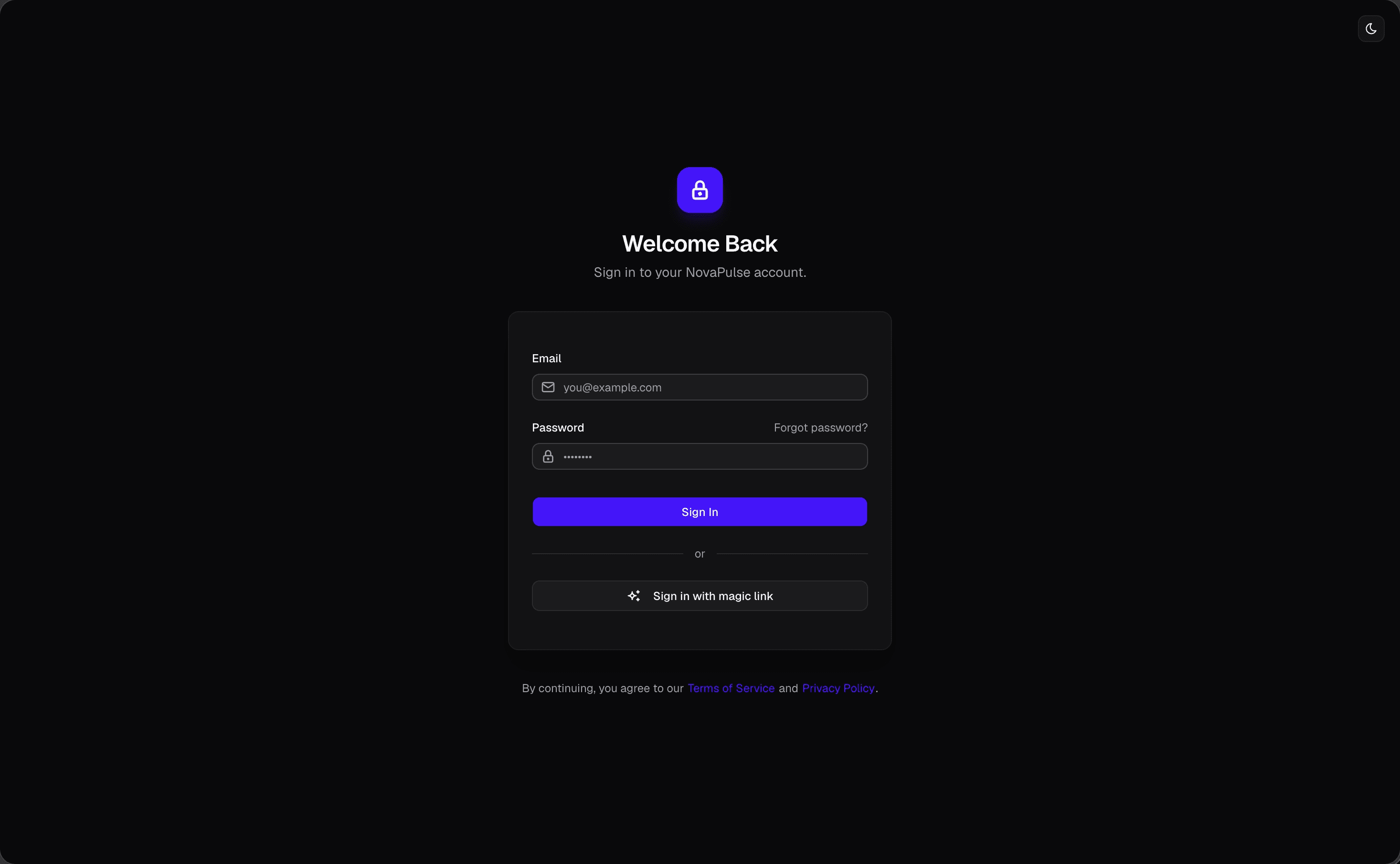
If you forget your password, use Forgot password? on the login page and we'll email you a reset link. The link is good for one hour.
Finding your way around
What you see right after signing in depends on how many practices you can access:
- You belong to a single practice. Novapulse drops you straight into that practice's voicemail inbox. You're ready to work.
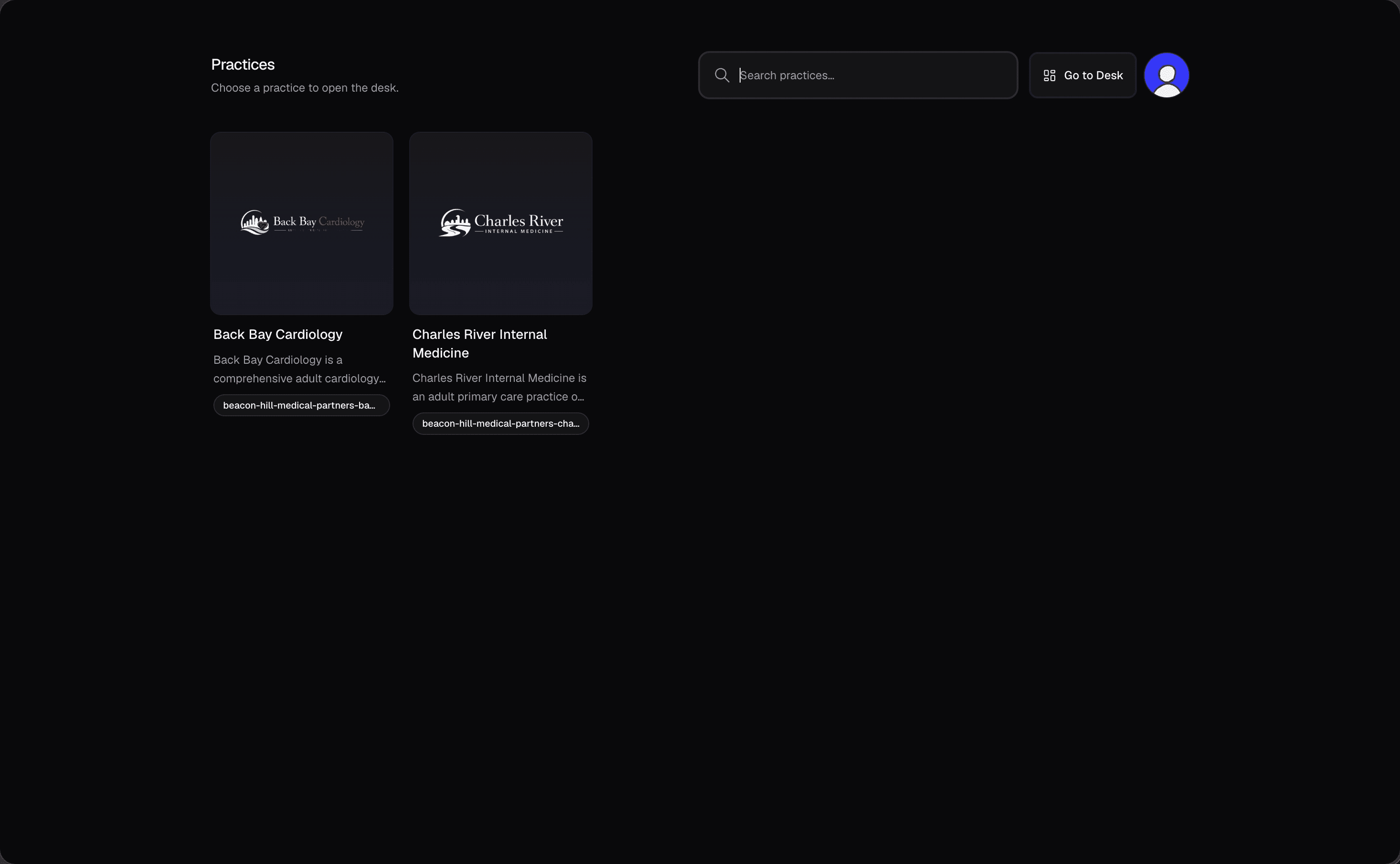
- You belong to more than one practice. Novapulse shows a practice picker, a list of every practice you're a member of. Pick one to enter. You can return to it any time to switch.
Once you're in, you're on one of two kinds of page: the Desk or inside a practice. Each has its own sidebar.
The Desk
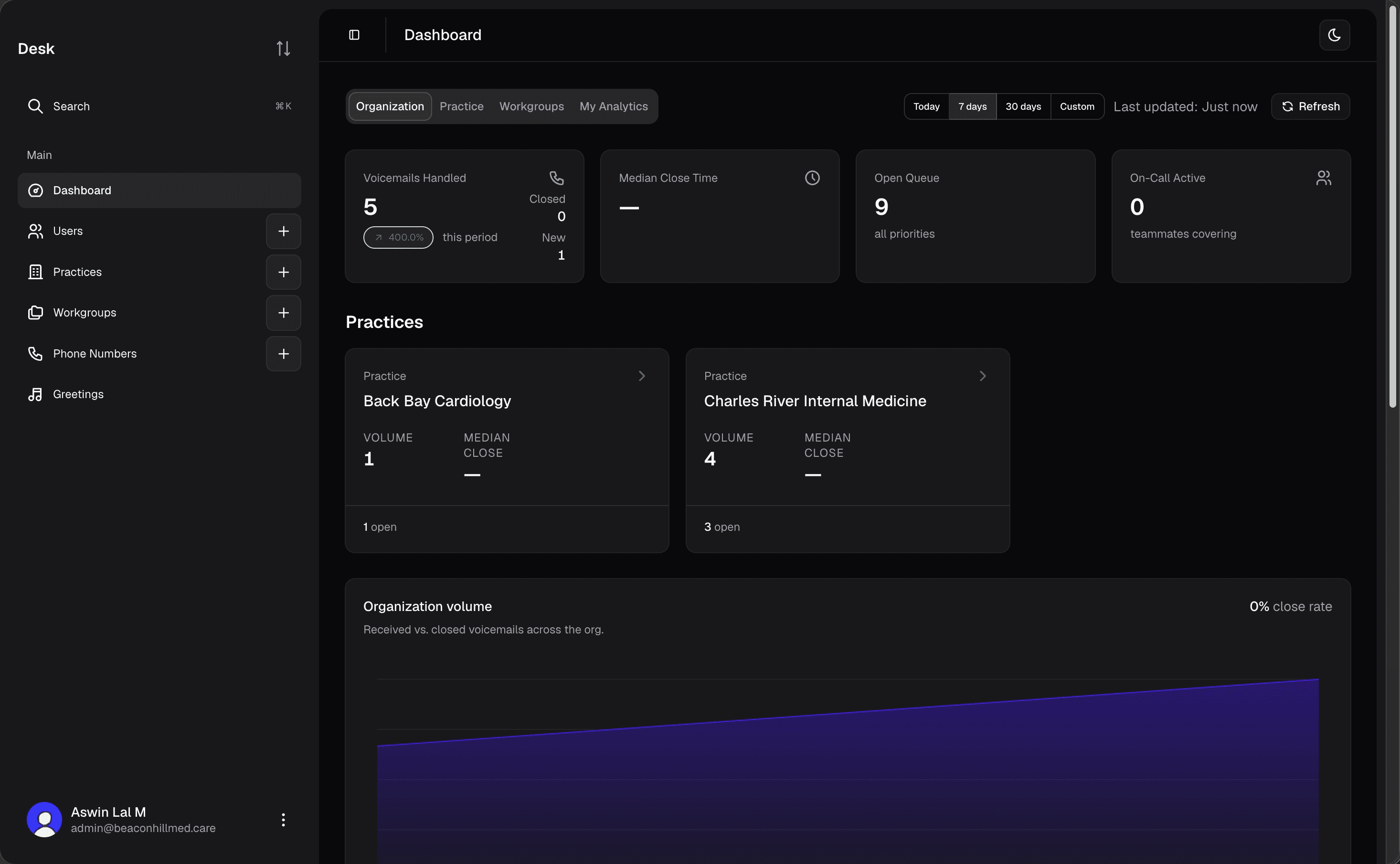
The Desk is the hospital-wide view at /desk. It's where org-level users see analytics across every practice and manage hospital-wide setup. Its sidebar has:
- Dashboard: hospital-wide analytics.
- Users: every user in the hospital.
- Practices: the list of practices.
- Workgroups: workgroups across every practice.
- Phone Numbers: every number registered to the hospital.
- Greetings: the shared greeting library.
Two things to know about the Desk:
- It's only for org-level roles: Hospital Admin, Hospital Staff, and Hospital Read-only. Practice and workgroup roles don't see it. See Permissions.
- It only exists for multi-practice hospitals. If your hospital has one practice, there's nothing to aggregate across, so the page isn't there and org-level users land directly inside that practice.
Inside a practice
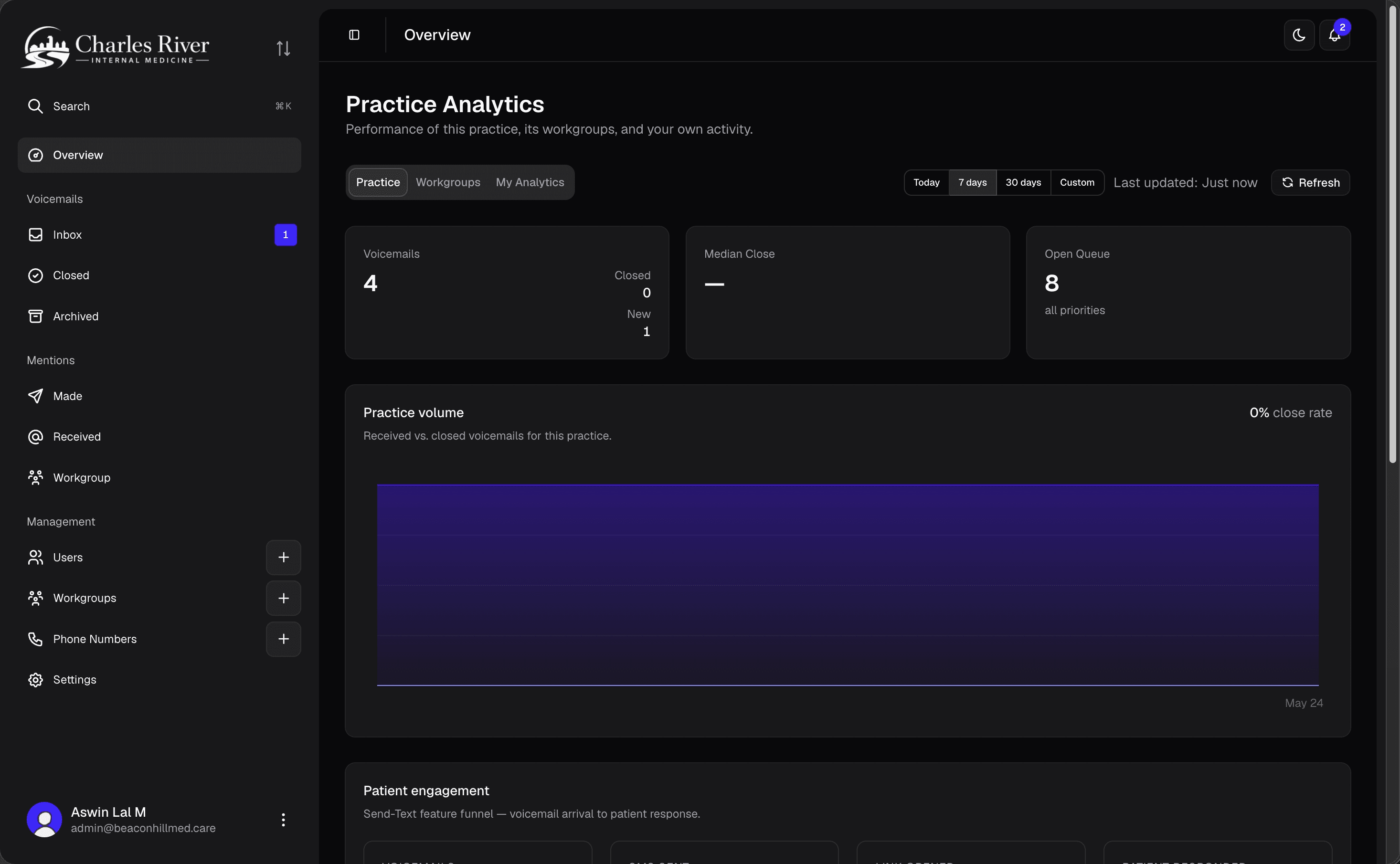
When you open a practice (picked from the list, auto-routed because you only have one, or clicked in from the Desk), the sidebar switches to that practice's items, grouped into sections:
- Overview: a quick-look dashboard for this practice.
- Voicemails: Inbox, Closed, Archived. See Voicemail Inbox.
- Mentions: Made, Received, Workgroup. See Mentions.
- Management: Users, Workgroups, Phone Numbers, Settings.
Which items you see depends on your role. For example, Settings only shows if your role can read practice settings, and Users needs practice or workgroup user access. See Permissions.
Switching practices and the Desk
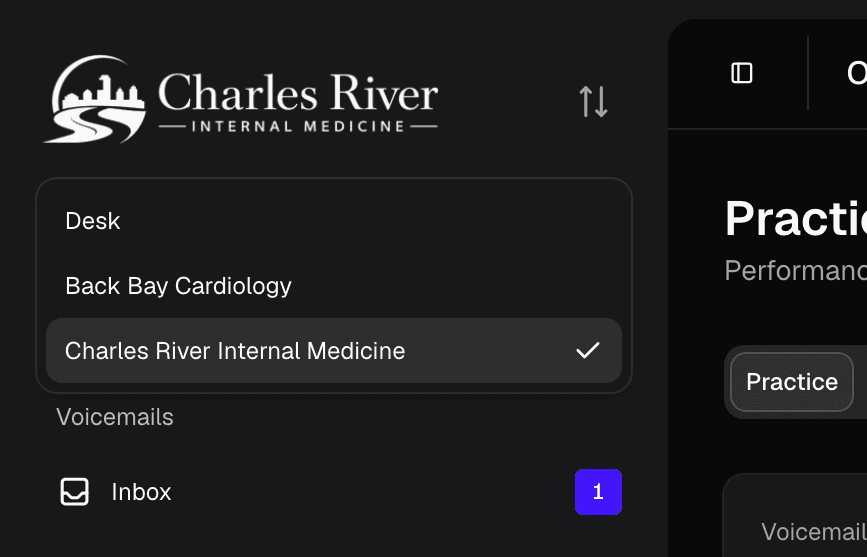
The top of the sidebar shows where you are: the practice you're inside (with its logo if it has one), or "Desk" on the hospital-wide view. Click it to open a dropdown of everywhere you can go:
- Desk: the hospital-wide view. Only listed if you're an org-level user and your hospital has more than one practice.
- Every practice you belong to. Pick one to switch into it.
This is the main practice switcher. The full-screen picker you saw right after sign-in is the same list, shown larger for first-time orientation. Once you're working, switch from this dropdown.
Your profile
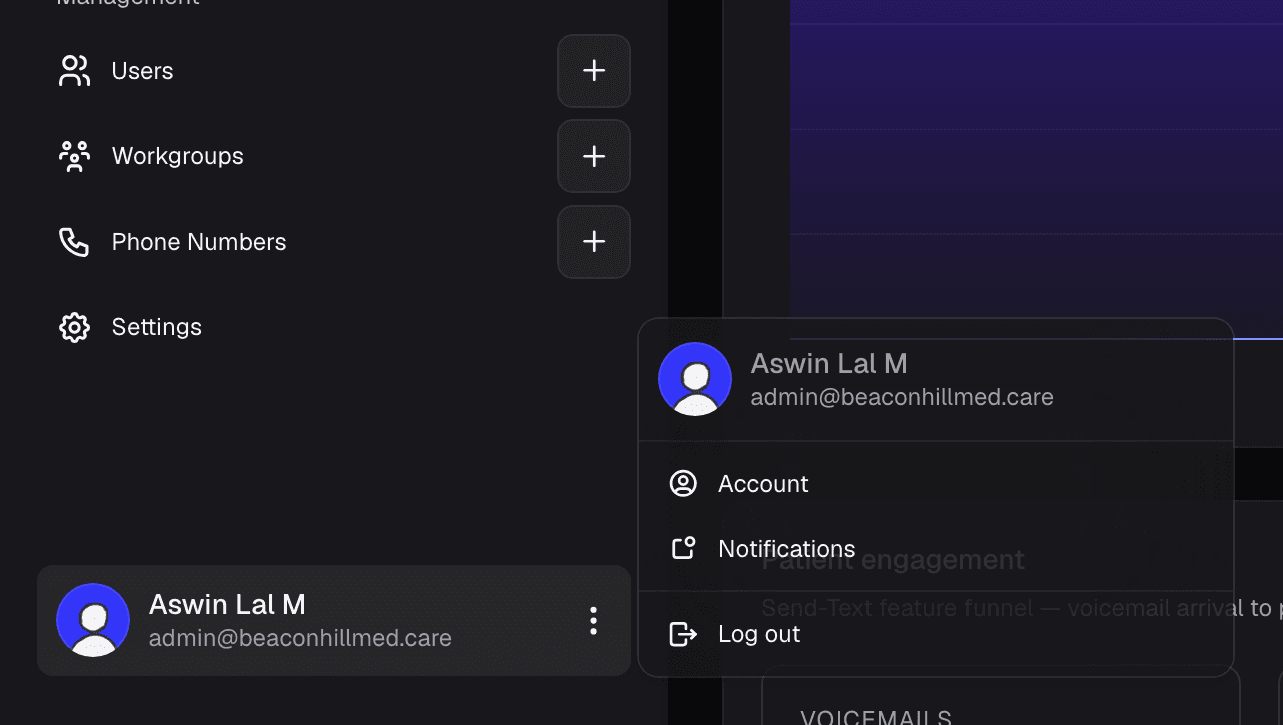
At the bottom of the sidebar is your profile button with your name, email, and avatar. Click it to open a small menu:
- Account: opens your profile.
- Notifications: opens the notifications page for the practice you're in. Only shown inside a practice.
- Log out: signs you out.
What to do on day one
In rough order:
- Check your profile. Open Profile from the avatar menu, confirm your name and designation, and add any misspellings of your name so the AI catches mentions of you.
- Open your practice. Click into the practice you'll be working from.
- Look at the inbox. Open Voicemails and listen to a few. Get a feel for how the AI tags them and what the statuses mean.
- Try a mention. Open a voicemail and @-mention a colleague in a comment. They get notified, and the mention shows up in your Mentions Made tab.
- Check your notifications. Open Notifications from the avatar menu to see the feed of things that need you: mentions, patient replies, and updates on voicemails you're following.
If anything in the app looks different from these docs, it's almost always permissions or a feature that's turned off for your hospital. Your role, and which features your hospital has enabled, decide what you can see and do.