Welcome to Novapulse
Help and guides for hospital teams using Novapulse.
Novapulse turns the calls your hospital misses into a triaged, assignable inbox. Patients leave a voicemail on your existing phone number. Novapulse transcribes it, tags what it's about, suggests who should handle it, and lets your team reply with a secure link the patient can open on any phone. These docs walk you through every part of the product.
What happens to a call
The path a missed call takes is the same every time:
- A patient calls a number you've routed into Novapulse. See Phone Numbers.
- The call goes unanswered, so Novapulse picks up and plays your greeting.
- The patient leaves a voicemail.
- Novapulse transcribes it, then tags a priority, a category, a workgroup, and the teammate it thinks should handle it.
- It lands in that practice's voicemail inbox, ready to read.
- Your team listens, coordinates with mentions, and can reply to the patient by text.
How the product is shaped
Novapulse organises your hospital in three layers, from the outside in:
- Organisation: the hospital itself. Your list of practices and the hospital's users live here.
- Practice: a department or specialty, like Cardiology, Pediatrics, or the front desk. Each practice has its own voicemail inbox, phone numbers, schedules, and members. See Practices.
- Workgroup: a team inside a practice, like Reception, Surgical, or Clinical. Workgroups let you mention a whole team at once and set priorities and categories per team. See Workgroups.
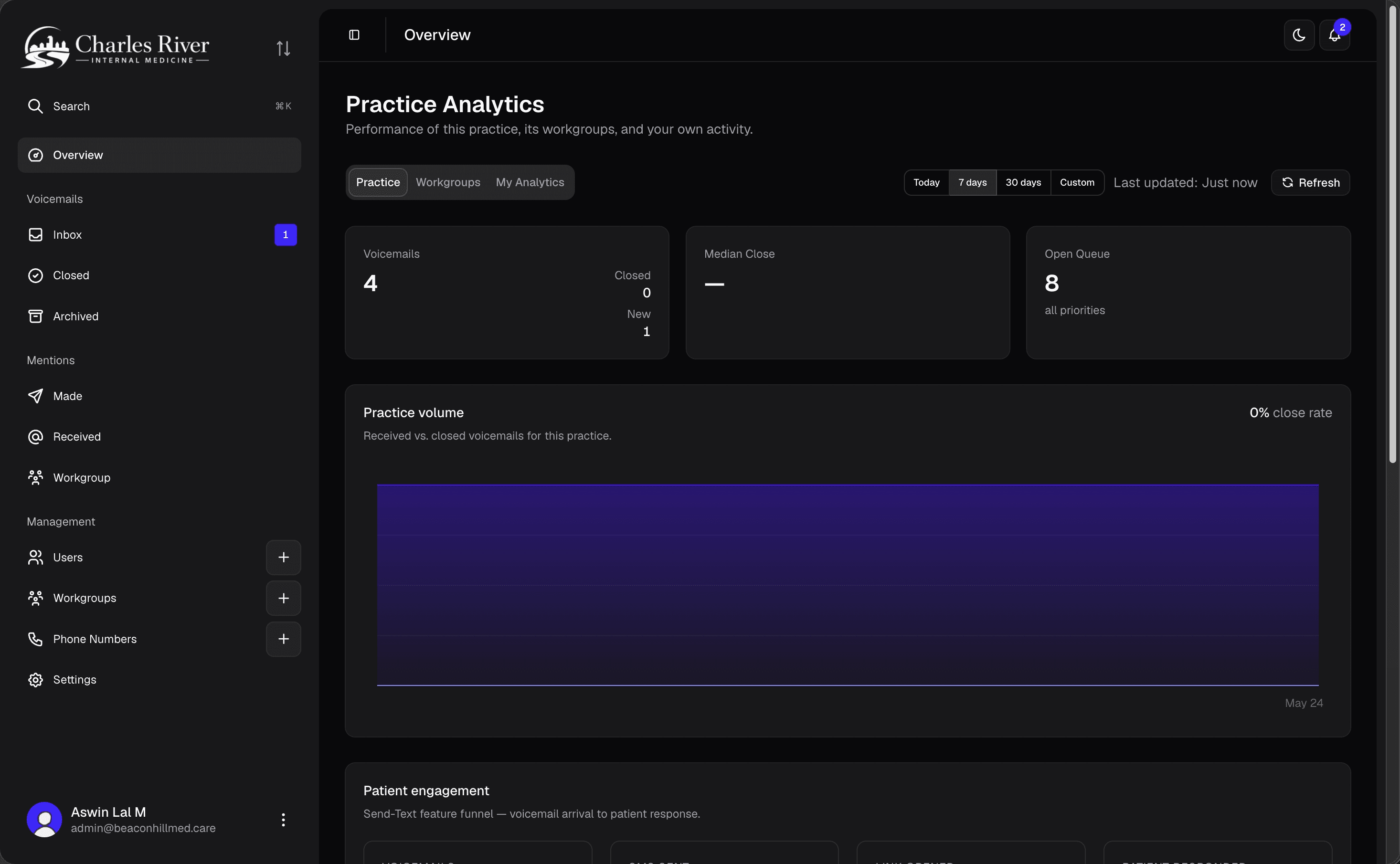
Every voicemail belongs to exactly one practice. Every user belongs to the organisation and to one or more practices, and inside each practice can also belong to one or more workgroups. Your role decides what you can do at each layer. See Permissions.
What's in these docs
- Start here: Getting Started covers your first login and how to find your way around.
- Daily work: the Voicemail Inbox and Mentions are where your team spends most of its time.
- Patients: Two-way patient messaging explains how to reply by text.
- Setup: Practices, Workgroups, Users, Phone Numbers, Greetings, and Settings cover how a hospital is configured.
- Availability: Coverage routes someone's mentions to a colleague while they're away.
- Insight: Analytics shows volume, response time, and how your team is doing.
- You: Profile is where you set your name, notifications, and the details that help the AI find mentions of you.
Finding things
If you can't spot what you need, every page is searchable from the top of the sidebar. Press Ctrl+K (or Cmd+K on Mac) to open search.
If the app looks different from these docs, it's almost always permissions. Your role decides what you can see and do.