Workgroups
Organize practice members into teams like reception, surgical, and clinical.
A workgroup is a team inside a practice. Where a practice is the unit of separation (different phones, different inbox), a workgroup is the unit of teamwork (same inbox, different shoulders to tap). Reception. Surgical. Clinical. Billing. Whatever fits how your practice is organised in real life.
Why workgroups exist
Two main reasons:
- Group mentions. Instead of mentioning five receptionists individually on a voicemail, you
#Receptionand the whole team is notified. - Customised priorities and categories. Different teams care about different tags. Reception wants priorities like URGENT, ROUTINE, APPOINTMENT REQUEST. Surgical wants PRE-OP, POST-OP, EMERGENCY. Each workgroup can have its own set.
A user can belong to as many workgroups as you like. Mentioning the user directly still works exactly the same whether they're in one workgroup or six.
Creating a workgroup
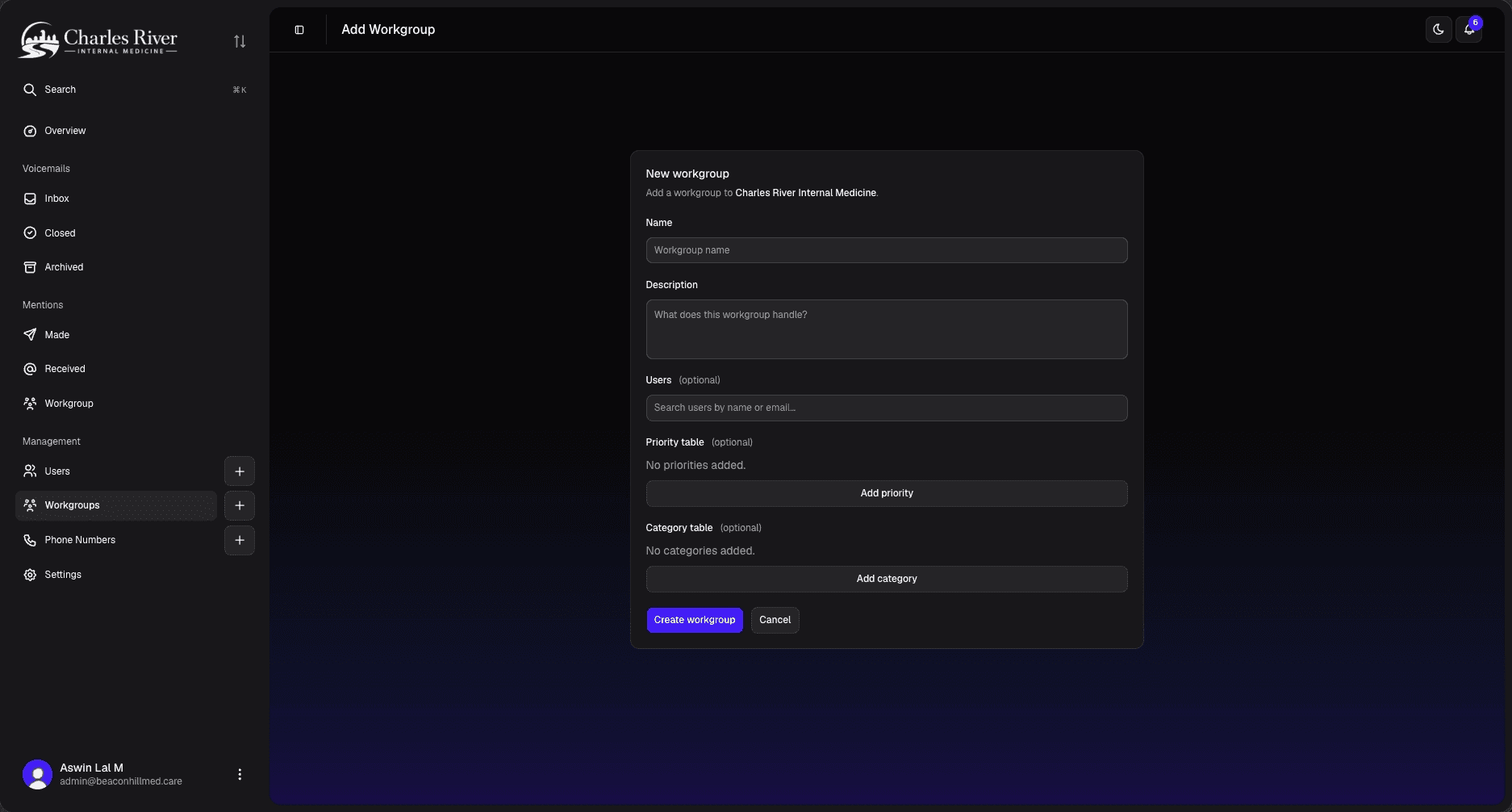
Inside a practice, open Workgroups → New workgroup. Workgroups can be created by Hospital Admins, Hospital Staff, and Practice Admins (see Permissions).
You'll set:
- Name — e.g. "Reception."
- Description — a short note about the team. Required.
- Members — pick users from the practice. Optional at creation; you can add or remove members at any time.
Members
The workgroup's members list is the canonical answer to "who is in this team?". Adding someone to a workgroup automatically lets them:
- Be reached by
#workgroup-namementions. - See the workgroup in their Mentions → Workgroup tab.
- Use the workgroup's priority and category tables when they tag voicemails.
Removing a user from a workgroup removes those things; their existing comments and assignments stay intact.
Priority and category tables
This is the most-used workgroup feature. Each workgroup has two small tables that define the labels available for voicemails handled by that workgroup:
- Priority table — labels like URGENT, ROUTINE, FOLLOW-UP, each with a colour and an optional "when to use this" hint. Each voicemail gets exactly one priority.
- Category table — labels like APPOINTMENT, PRESCRIPTION REFILL, INSURANCE, each with a colour and a description. A voicemail can have multiple categories.
Both tables are workgroup-specific. The AI uses them when it tags incoming voicemails — it picks from the labels you've defined, not from a generic global list. This is what makes the tags useful: Reception's URGENT doesn't have to mean the same thing as Surgical's.
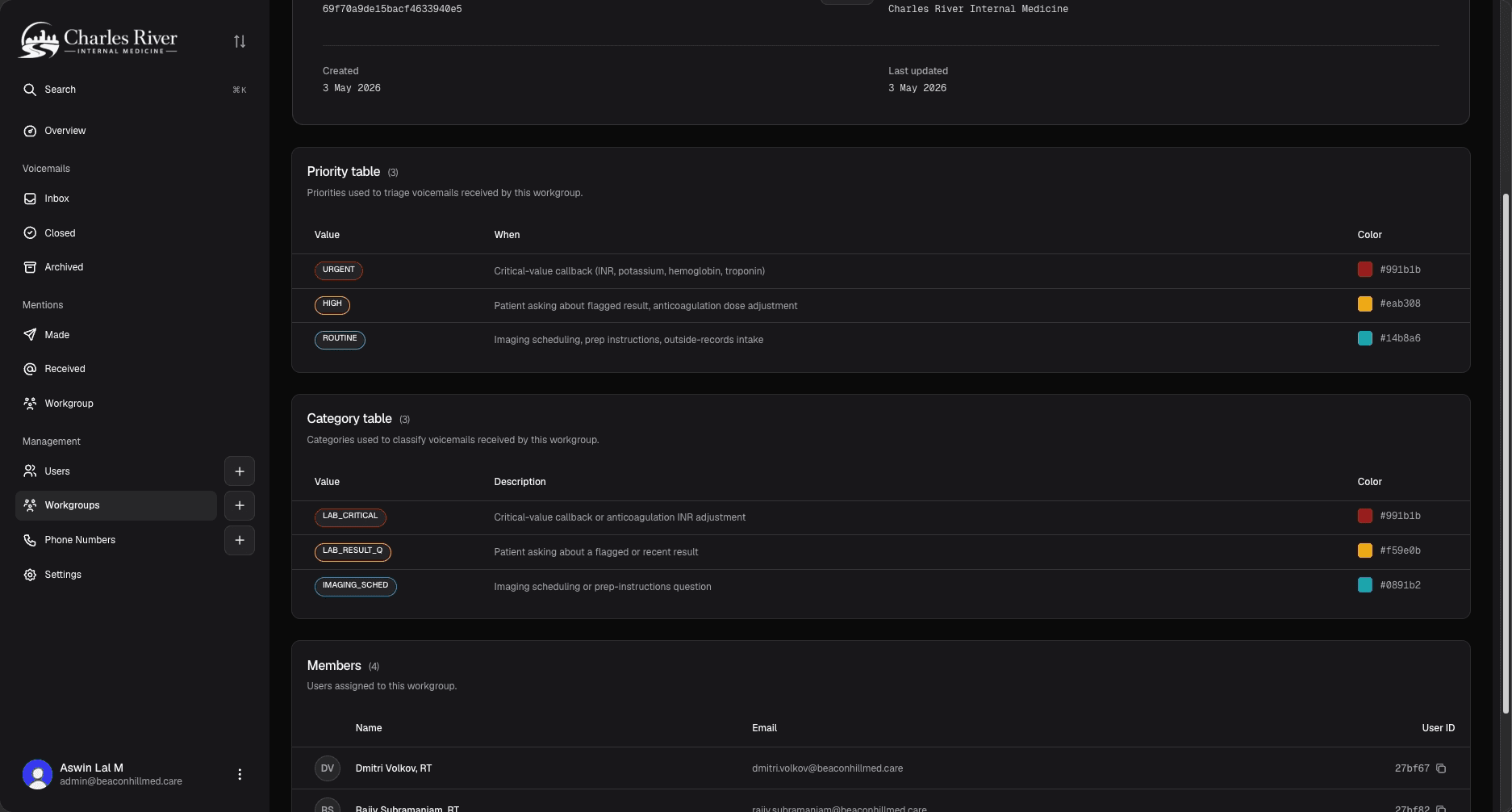
To edit either table, open the workgroup → Settings → Priorities (or Categories). Rows can be added, edited, or deleted. Values are stored as you type them; the convention is to use uppercase, and to keep each label in a table distinct.
When you change a label, voicemails already tagged with the old label keep their tag for history — the change only affects new voicemails.
Mentioning a workgroup
Anywhere you can mention a person, you can mention a workgroup. #Reception in a comment notifies every current member of the Reception workgroup. If you add a new member later, future mentions reach them too.
If a workgroup is mentioned in a voicemail's transcript (the AI sees a phrase like "ask reception"), the workgroup is auto-mentioned the same way a user would be.
Silent voicemails
Some callers hang up without speaking, or leave a recording with no clear speech. When the system detects one of these on a practice's main number and can't route it from the transcript, it can send it to a default silent workgroup so it isn't lost.
You set this from a workgroup's Settings with a Handle silent voicemails toggle. A few things to know:
- It's practice-wide: at most one workgroup per practice can be the default for silent voicemails. Turning it on for one workgroup turns it off for whichever workgroup had it before.
- An actively on-call workgroup always takes precedence over the silent default.
- It only applies when Auto-tag workgroup is on for the practice (see Practice settings).
- Because it's a practice-wide setting, changing it needs practice-level settings permission, not just workgroup access.
You can also set the same thing from the practice's own Settings page, under Silent voicemail routing.
On-call
A workgroup can be put on-call — a mode where, during the windows you define (nights, weekends, holiday cover), every voicemail in the practice is directed to that workgroup regardless of what the AI would otherwise decide. Callers hear a dedicated on-call greeting and the practice shows an OnCall mode active banner. On-call is a first-class workgroup feature, so it has its own page:
- On-call → — what on-call does and when to use it.
- Schedules → — the time windows that decide when the workgroup is on-call.