Two-way patient messaging
Reply to patients by text, see read receipts, and keep the whole conversation attached to the original voicemail.
Two-way patient messaging turns a one-way voicemail into a back-and-forth conversation — by text message, not a phone call. When a patient leaves a voicemail, they get an SMS with a secure link. That link opens the patient portal, where they can read your reply and message your hospital back. Their replies land inside the same voicemail your team was working from, so the whole exchange stays in one place.
This page covers both sides: what patients see, what your team sees, and how to turn it on.
Turning it on
Two-way messaging is off by default on a new practice. To enable it:
- Open the practice → Settings.
- Find the Two-way patient messaging card and flip the switch on.
The change applies to new voicemails going forward. Voicemails that arrived while the feature was off don't retroactively get a link.
See Practices → Settings for the full settings page.
On vs off in one line: With two-way ON, patients get a portal link and staff get a Send text sheet. With two-way OFF, patients get a plain "we got your voicemail" SMS and the Send text UI is hidden.
What the patient sees
When a voicemail is processed, the patient gets a short SMS at the number that called in:
Thank you for calling Riverside Cardiology. You can track your message here: https://app.novapulse.care/patient/activity/xxxxxxxx?token=xxxxxxxx (link expires in 24 hours)
The link is a magic link:
- It auto-signs the patient in — no OTP, no account, no password.
- It expires 24 hours after it's minted. If it expires before the patient taps it, your team can send a fresh one by clicking Alert patient on the Send text sheet.
- It's tied to the phone number that left the voicemail. Forwarded links won't work.
When the patient taps the link, the portal opens straight into a chat-style view:
- The voicemail's AI-generated summary at the top, so they remember what this is about.
- The full conversation: every message your team has sent, every reply they've sent. Staff messages on one side, patient messages on the other.
- A textarea at the bottom to write back.
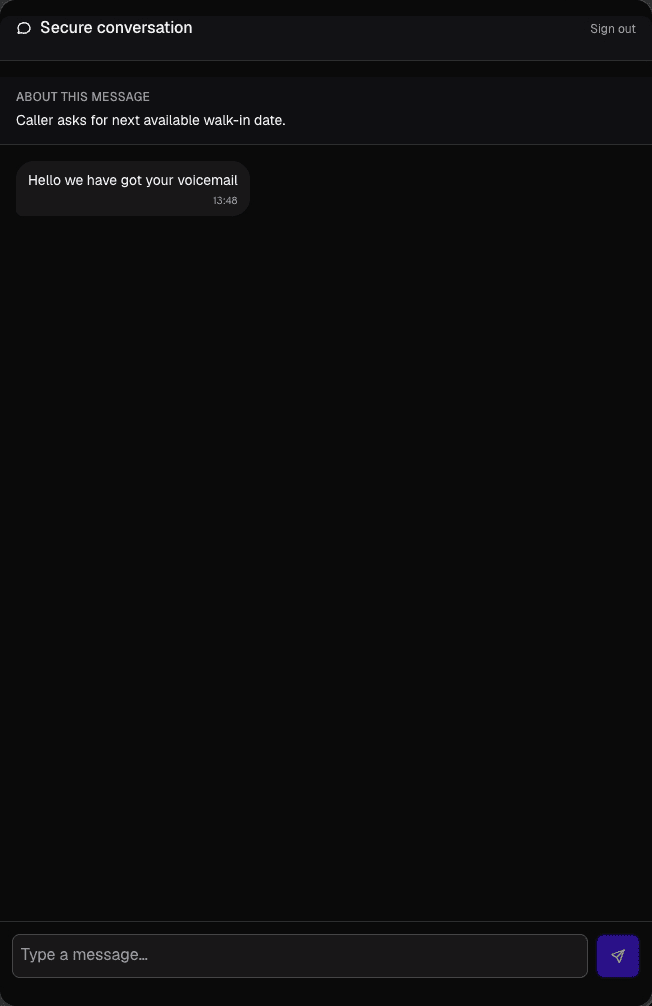
Patients can send as many replies as they want; there's no limit. Each reply lands in your team's Send text sheet immediately and triggers a notification to whoever is tagged on the voicemail.
The patient's session lasts 6 hours from the moment they tap the link. Within that window they can close the tab and come back without re-tapping the SMS. After 6 hours they'd need a fresh link.
What your team sees
Open any voicemail and click Send text to open the messaging sheet on the right. It shows:
- The caller's name, phone number, and a live Online badge (lit when the patient is currently in the portal).
- A timestamp of the last alert SMS you sent, if any — e.g. "Alert sent 12 minutes ago".
- The full message thread. Your messages appear on one side with sent → delivered → read receipts (similar to WhatsApp), patient messages on the other.
- A textarea + Send button at the bottom.
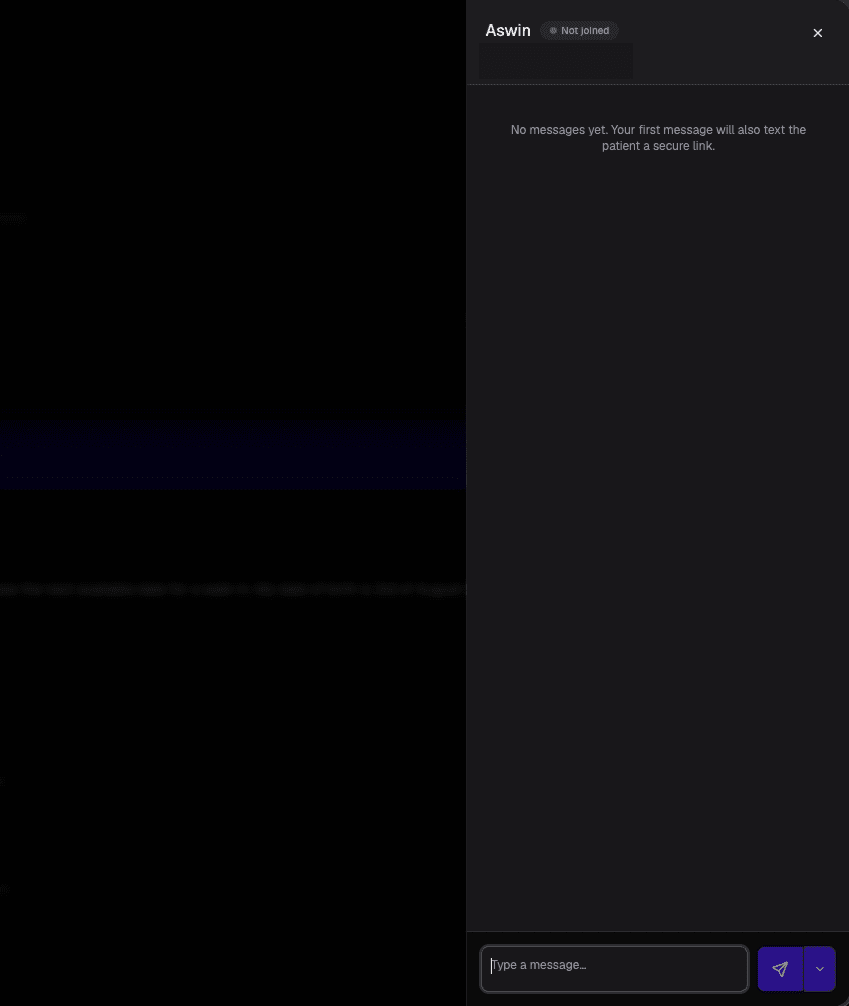
Send vs Alert
The send button has two modes. Pick whichever applies:
- Send (SMS only if needed) — adds your message to the thread. Fires an SMS to the patient only if this is the first message or it's been more than 10 minutes since the last alert. Use this for follow-ups where the patient is already chatting with you in the portal — they'll see the new message on the next poll without getting another text.
- Send + Alert patient — adds your message to the thread and forces a fresh SMS regardless of the cooldown. Use this when the patient has gone quiet and you want to nudge them.
Either way, the SMS itself never contains your message body — it's just the magic link. The actual message text lives inside the portal (and inside Novapulse), encrypted at rest.
How the alert cooldown works
To stop us spamming patients with link SMSes, alerts have a 10-minute cooldown per voicemail. The first message in a thread always sends an SMS (the patient needs the link to know there's a reply waiting). After that, additional messages only re-send the SMS if more than 10 minutes have passed — or if you explicitly click Send + Alert patient.
The same magic link is reused if you alert again before the patient has used it, so they don't get a flood of different links pointing at the same conversation. A link stays valid until it's first consumed or until it expires (24 hours), after which a fresh one is minted.
Read receipts
Each message has three states:
- Sent — your message is saved and the SMS (if any) is queued with Twilio.
- Delivered — the recipient has loaded the thread (patient opened the portal, or staff opened the Send text sheet). Set server-side, automatically.
- Read — explicitly marked read when the message scrolls into view in the other person's UI.
Read receipts are bidirectional: you see when the patient reads your messages, and they see when your team reads theirs. No way to turn this off currently.
Privacy & security
- Encrypted at rest. Both the voicemail audio and the message text are encrypted in MongoDB via Vault. The SMS to the patient only carries the link — never the message content itself.
- No patient account. Patients never sign up, never pick a password. Authentication is the magic link + their phone number.
- Phone-bound session. The session cookie only authorises voicemails that match the patient's phone number on this practice. A patient can't see anyone else's conversation, even if they have their link.
- Limited-use links. A magic link authenticates a small number of times (to survive SMS link-preview bots and re-taps), then stops working; taps past that cap return a 401. Sessions, not links, persist after that.
- Short link TTL. Magic links expire 24 hours after they're minted, keeping the blast radius small if a link is ever leaked.
Permissions
Staff who can see a voicemail can also send a patient message on it. The rules:
- Anyone whose scope covers the voicemail (org / practice / workgroup admins and staff), OR
- Anyone @-mentioned (or #-mentioned via their workgroup) on the voicemail — as long as the practice has Allow mentioned users to update voicemails turned on (see Practices → Settings).
There's no separate "send patient messages" permission — it rides on the same access as editing the voicemail itself.
When two-way is off
If you don't want patients to be able to reply, leave Two-way patient messaging off. In that mode:
- Patients still get an SMS confirming their voicemail arrived: "Thank you for calling {practice name}. We received your voicemail and will get back to you soon." No link, no portal.
- The Send text button on voicemails is hidden — your team handles follow-ups by phone or in person, the same as before the portal existed.
You can flip this on and off at any time; the change applies to new voicemails only.
Notifications
When the patient sends a reply, the staff tagged on the voicemail (the assigned user, plus anyone in the assigned workgroup) get a push notification under Patient messages in their Notifications tab. The preview shows the first ~140 characters of the patient's reply so triage is fast.
When your team sends a message, no notification fires — staff who are also viewing the same voicemail simply see the new message appear in real time on their next poll.
Related
- Practices → Settings — where the master toggle and the Allow mentioned users to update voicemails toggle live.
- Voicemail Inbox — where Send text is opened from.
- Mentions — how mentioning a teammate or workgroup grants them access to the voicemail (and therefore to Send text).