Mentions
Loop teammates and workgroups into a voicemail by mentioning them in a comment.
Mentions are how your team coordinates inside a voicemail. They live in the comment thread on the voicemail detail view — you write a comment, mention a teammate or a workgroup, and they get notified.
Mentions are different from how the AI tags a voicemail. When a voicemail arrives, the AI sets a workgroup and a user it thinks should handle it — that's what you see in the Workgroup and User columns of the inbox. That's a routing hint, not a notification. To actually bring someone into a voicemail, you mention them in a comment.
Why mention someone
Three common reasons:
- To hand off the work. You're the receptionist; this voicemail needs the appointment booked by someone else. Comment "@Sara please handle the booking" and it lands in Sara's Received list with a notification. The voicemail now has a clear owner without anyone having to ask "who's on this?".
- To keep a record. Even if you handled it yourself, mention the relevant teammate so it's on the record for next time. "@Dr. Patel — I checked, the script is already in their file." Now there's a paper trail of who looked at what, visible to the whole team.
- To close the loop. When something is done, say so. "Done — patient was reached, appointment booked. Closing this out."
How to mention
Open a voicemail and start typing in the comment box. Two prefixes give you a picker:
@— mentions a teammate. Start typing@and a list of users you can mention appears. Pick one and keep writing.#— mentions a workgroup. Start typing#and a list of workgroups appears.
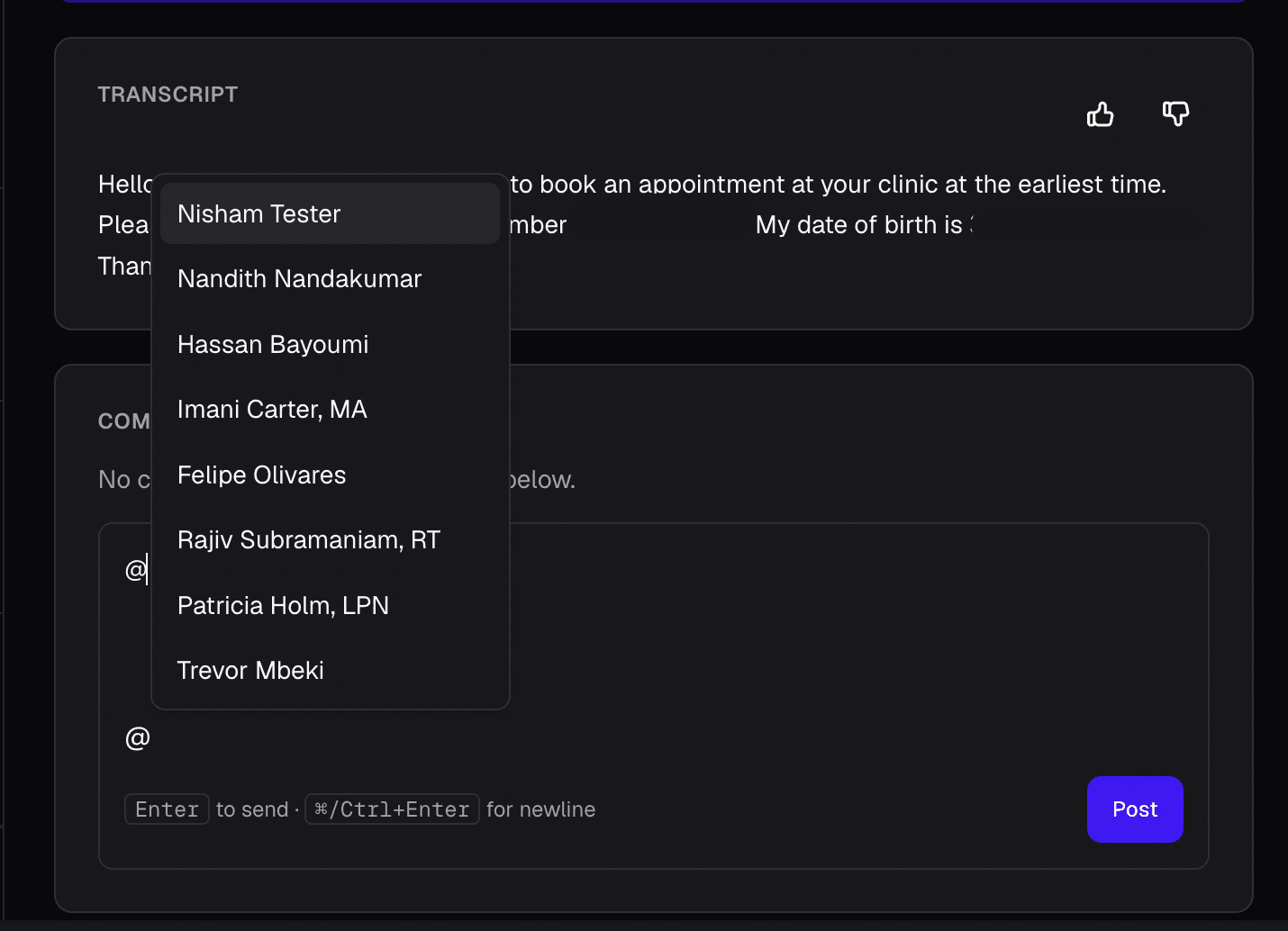
A single comment can have any number of mentions and can mix @ users and # workgroups freely. Examples:
Hey @Sarah Williams or @Mary Smith, can any of you call this patient back today?#Reception please add this to the morning queue, or @Sara if you're on leave.@Dr. Patel — your patient, but looping in #Billing in case they ask about cost.
When the comment is posted:
- Every mentioned teammate gets a notification, shown in-app and in their Notifications feed.
- Every member of a mentioned workgroup who has access to voicemails gets the same notification.
Three views: Made, Received, and Workgroup
Open Mentions in the practice sidebar. There are three tabs:
- Made — comments you authored. Useful for "what did I hand off?".
- Received — voicemails where someone
@-mentioned you. This is your personal to-do list. - Workgroup — voicemails where a workgroup you belong to was
#-mentioned, even if you weren't named personally.
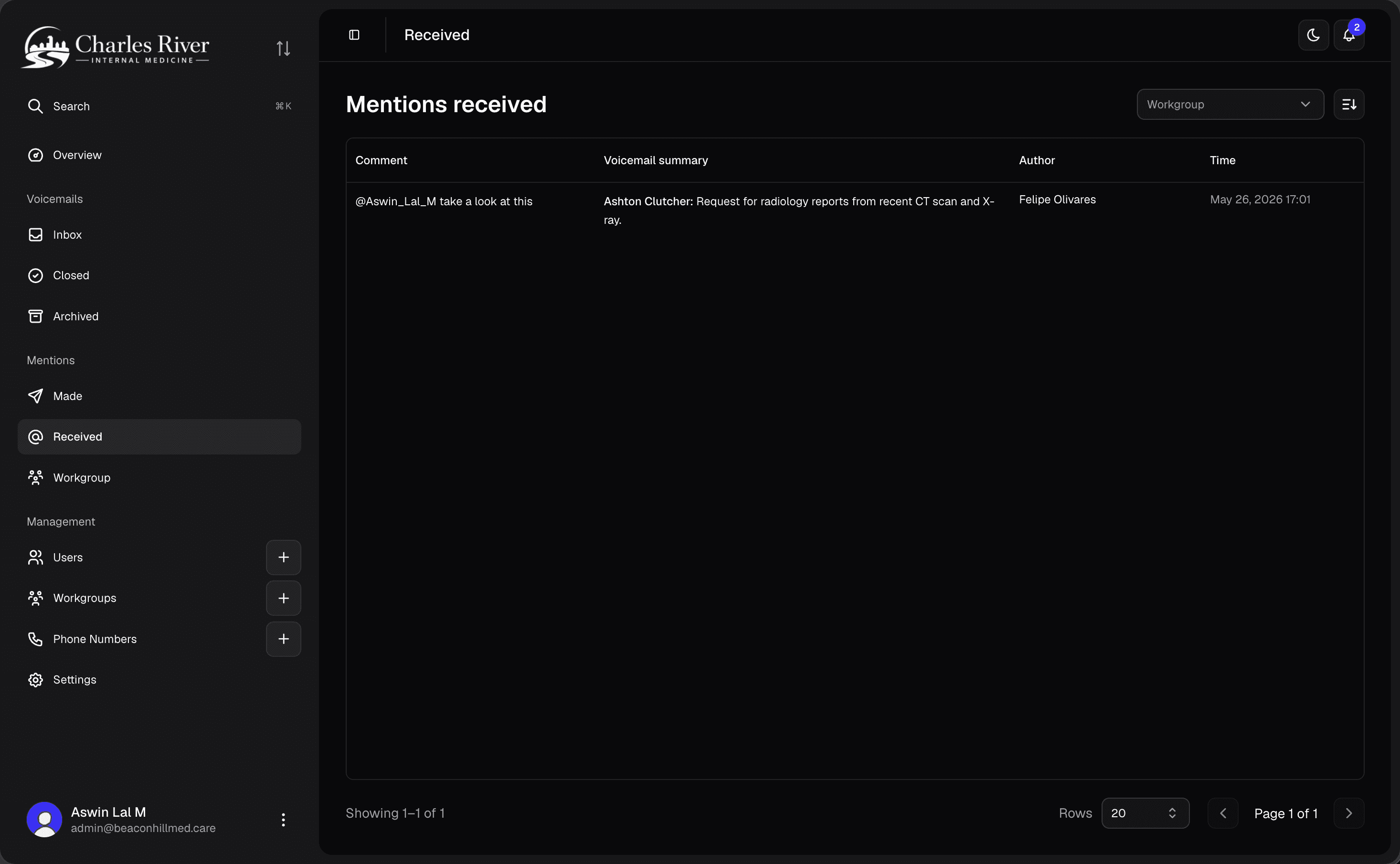
A voicemail can appear in more than one tab — for example, if you and your workgroup were both mentioned in the same comment.
Coverage and mentions
Coverage redirects the voicemails the AI automatically assigns to a teammate who's away — including when a patient asks for them by name — to whoever is covering for them. It does not redirect a manual @-mention you type in a comment: that notification always goes to the person you actually named.
So if a teammate is away, @-mention their cover directly (or #-mention the workgroup) to be sure it's seen. New voicemails the AI would have routed to the away teammate reach their cover on their own.