Practices
Create and manage the specialty departments inside your hospital.
A practice in Novapulse is a department or specialty inside your hospital — Cardiology, Pediatrics, the front desk, the billing office, anything that has its own phones and its own team. Practices are the unit of separation: each practice has its own voicemail inbox, its own users, its own phone numbers, and its own analytics.
When to make a new practice
Make a new practice when a team needs:
- Its own phone number that patients call.
- A voicemail inbox that's separate from everyone else's.
- A different set of users from other parts of the hospital.
- Different open hours, holidays, or greetings.
If two teams share all of those, they're really one practice and probably one or two workgroups.
Creating a practice
Only Hospital Admins (org:admin) can create practices — see Permissions. From the Desk sidebar, open Practices → New practice.
Self-serve is only available once your hospital has two or more practices. If your hospital currently has just one practice, please contact the Novapulse team and we'll create your second practice for you. Once your hospital has two practices, Hospital Admins can create any additional practices on their own.
Self-serve creation of the second practice is on the roadmap.
You'll be asked for:
- Name — what shows up in the sidebar (e.g. "Cardiology").
- Slug — a short URL-safe identifier (e.g.
cardiology). The slug becomes part of the practice's URL:app.novapulse.care/practices/details/cardiology/.... - Description — short note about what this practice does. Optional.
- Timezone — used for analytics period buckets and schedule open hours.
- Initial admin — the first user assigned to the practice with admin permissions. You can pick an existing user or create a new one.
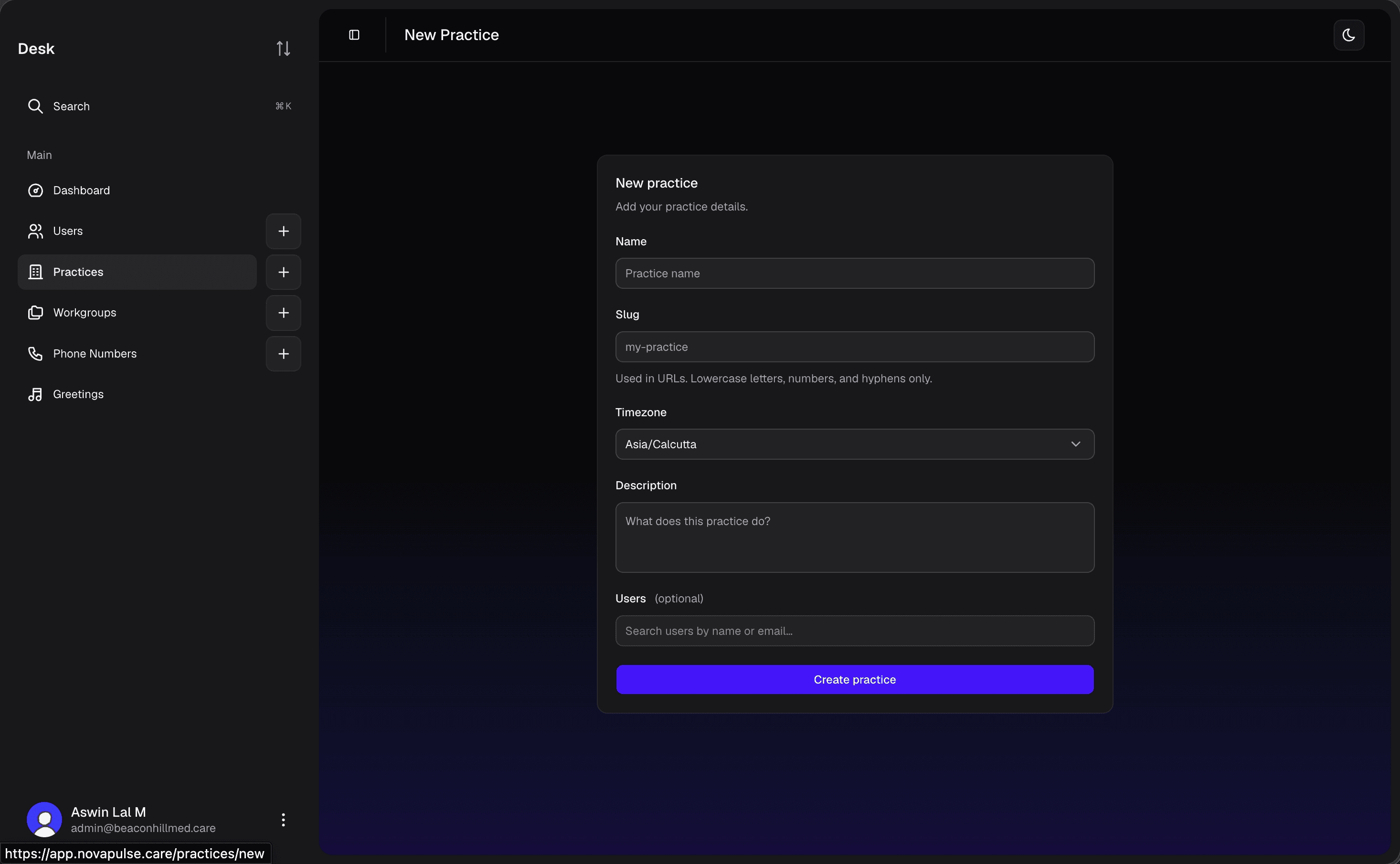
After creation, the practice shows up in your sidebar. The initial admin can immediately start adding users, workgroups, phone numbers, schedules, and greetings.
Practice settings
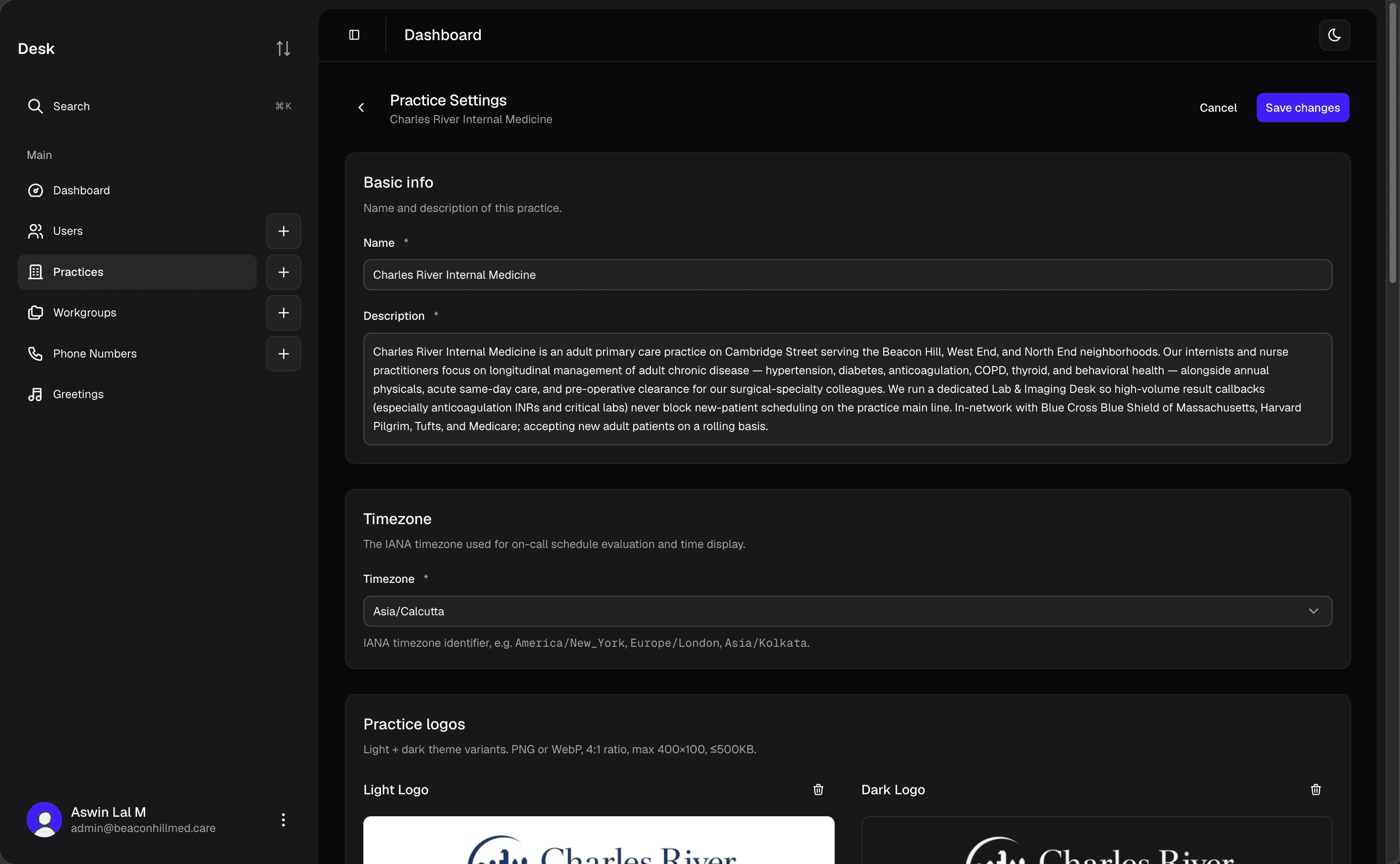
The Practice settings page can be reached from two places — both land on the same form:
- From the Desk — open Practices in the Desk sidebar, click a practice in the list, then open Settings. URL:
/practices/details/<slug>/settings. This is the entry point Hospital Admins typically use to manage every practice in the hospital. - From inside the practice — in the practice's own sidebar, click Settings. URL:
/<slug>/settings. This is the in-context entry point Practice Admins and other practice members use.
The page is a stack of cards; the table below summarises each one, top to bottom.
| Setting | What it does |
|---|---|
| Basic info | Name, description, and timezone. The timezone drives the practice clock, analytics period buckets, and schedule open hours. |
| Practice time | Live clock for the practice's timezone — at-a-glance check for whether they're inside or outside business hours. |
| Practice phone number | Read-only list of phone numbers attached to this practice and whether each is verified. |
| Practice logos | Light and dark theme logo variants shown in the practice header. PNG or WebP, 4:1 ratio, max 400×100, ≤500KB each. |
| Voicemail greetings | Pick the normal greeting (played when no workgroup is on-call) and the on-call greeting (played whenever any workgroup is on-call). MP3 only, ≤5MB. |
| Mentions & comments | Toggle Allow mentioned users to update voicemails. When on, anyone @-mentioned (or whose workgroup is #-mentioned) can change status, priority, category, and archive — even without the normal permissions. When off, mentioned users are view-and-comment only. |
| Two-way patient messaging | Master switch for SMS replies. On = patients get a portal link and staff see Send text. Off = patients get a plain acknowledgement and the Send text UI is hidden. |
| Auto-tagging | Four independent switches that control what the AI fills in: assigned user, workgroup, priority, category. Turn any one off to leave that field blank for manual triage. See Voicemail Inbox for how tags are used downstream. |
| Silent voicemail routing | Pick a default workgroup to catch voicemails the system judges silent (no speech detected), so they aren't lost. Only one workgroup per practice can hold this. A workgroup that's actively on-call always takes precedence, and it requires Auto-tag workgroup to be on. |
| Pseudo users | Names patients ask for that don't have a real user account — for example, a specialist doctor who doesn't log in. Each pseudo user is mapped to a real user so voicemails that mention the pseudo name get routed correctly. |
Screenshot: the Practice settings page reached from the Desk → Practices → Settings flow. The in-practice entry point shows the same form, just with the practice's own sidebar instead of the Desk one.
Deleting a practice isn't on this page — it's a separate flow. From the Desk sidebar, open Practices, find the practice in the list, and click Request deletion. The request goes to the Novapulse team for review because practices hold patient data and can't be removed instantly.
URLs
Each practice has its own URL shape:
https://app.novapulse.care/practices/details/{slug}/voicemails
https://app.novapulse.care/practices/details/{slug}/mentions
https://app.novapulse.care/practices/details/{slug}/analytics
You can copy these and share them with teammates — anyone who's a member of the practice can open them; anyone who isn't gets bounced to a "not found" page.
What sits inside a practice
Once a practice exists, the things you set up inside it are:
- Workgroups — teams within the practice
- Users — practice members
- Phone Numbers — the numbers that route into this practice
- Schedules — on-call time windows for its workgroups
- Greetings — what callers hear
- Coverage — routing a member's mentions to a cover while they're away
- Analytics — the practice's Desk dashboard