Voicemail Inbox
How to triage, listen to, and respond to voicemails as a team.
The voicemail inbox is the heart of Novapulse. Every voicemail your patients leave shows up here, already transcribed, tagged, and pre-assigned to the people who should probably handle it. Your job is to listen, decide, and reply.
Where voicemails come from
Your hospital's phone numbers route calls into Novapulse (see Phone Numbers). When a call goes unanswered, the patient hears your greeting, leaves a voicemail, and a few seconds later it appears in the inbox of the practice that owns the number — already transcribed and tagged, ready to read.
The inbox view
The inbox is the list of every voicemail this practice has received, shaped like an email client and sorted newest first. You scan, filter, and pick what to open from here; the open state itself is covered in Opening a voicemail below.
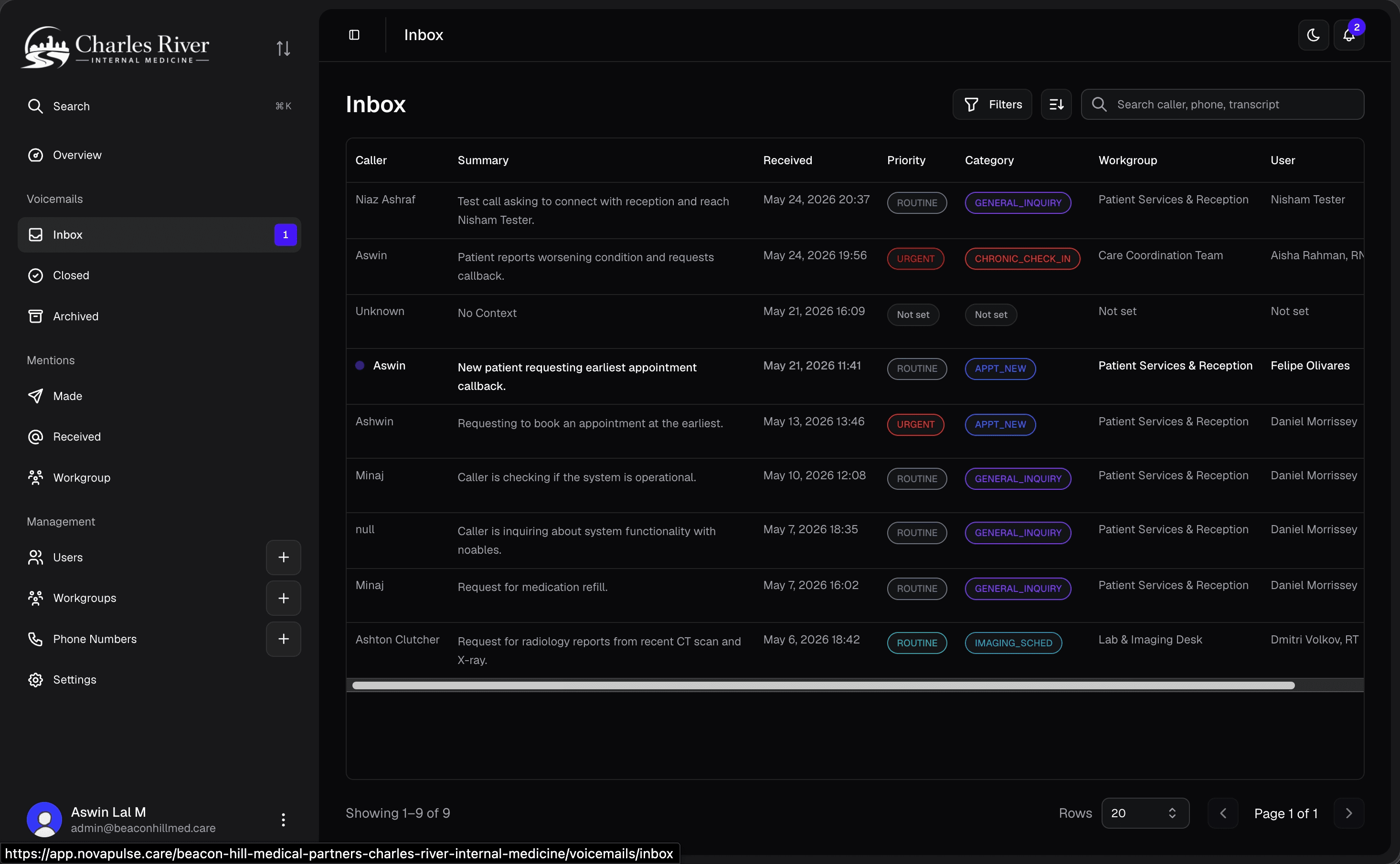
Each row is a single voicemail, with these columns:
- Caller — the patient's name as the AI lifted it from the transcript, or "Unknown" if there's no clear name. Voicemails that are still unread show a small pulsing dot next to the name.
- Summary — a short, one-line summary the AI generated from the transcript.
- Received — when the voicemail came in. The list is sorted by this column; the button next to the search bar flips between newest-first and oldest-first.
- Priority — one priority label from the workgroup's priority table. The AI sets a starting value; click the badge to change it.
- Category — one category label from the workgroup's category table. Same idea — AI picks a starting value, click to change.
- Workgroup — the workgroup the AI thinks should handle this voicemail. Click to reassign.
- User — the specific teammate the AI assigned. Click to reassign.
At the end of each row, a three-dots menu gives you row-level actions without opening the voicemail: mark read or new, close, archive, or restore.
The Workgroup column, the workgroup filter, and the Transfer action only appear when Workgroups is enabled for your hospital. If it's off, voicemails are routed to people directly and you won't see workgroup controls.
You can narrow the list with:
- Search — by caller name, phone number, or anything in the transcript.
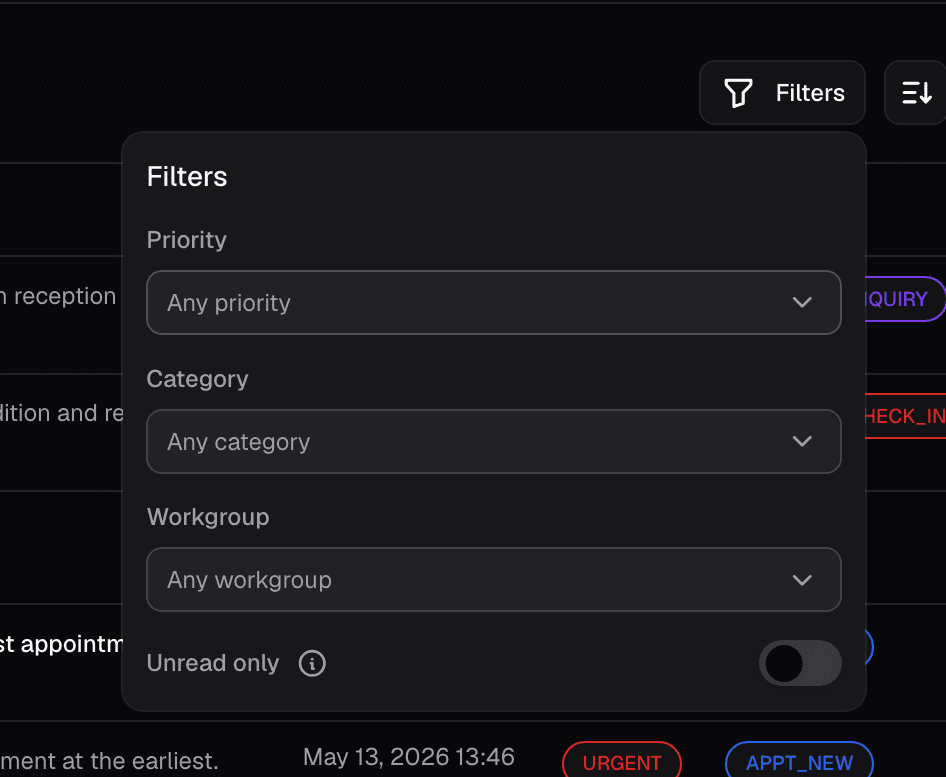
- Filters popover — pick a single priority, category, or workgroup. On the Inbox, you can also toggle Unread only to hide voicemails someone's already opened.
- Sort direction — newest first by default; click the sort button to flip to oldest first.
The current search, filters, sort, and page live in the URL — bookmark a view or share its link with a colleague and they'll see exactly the same list.
Opening a voicemail
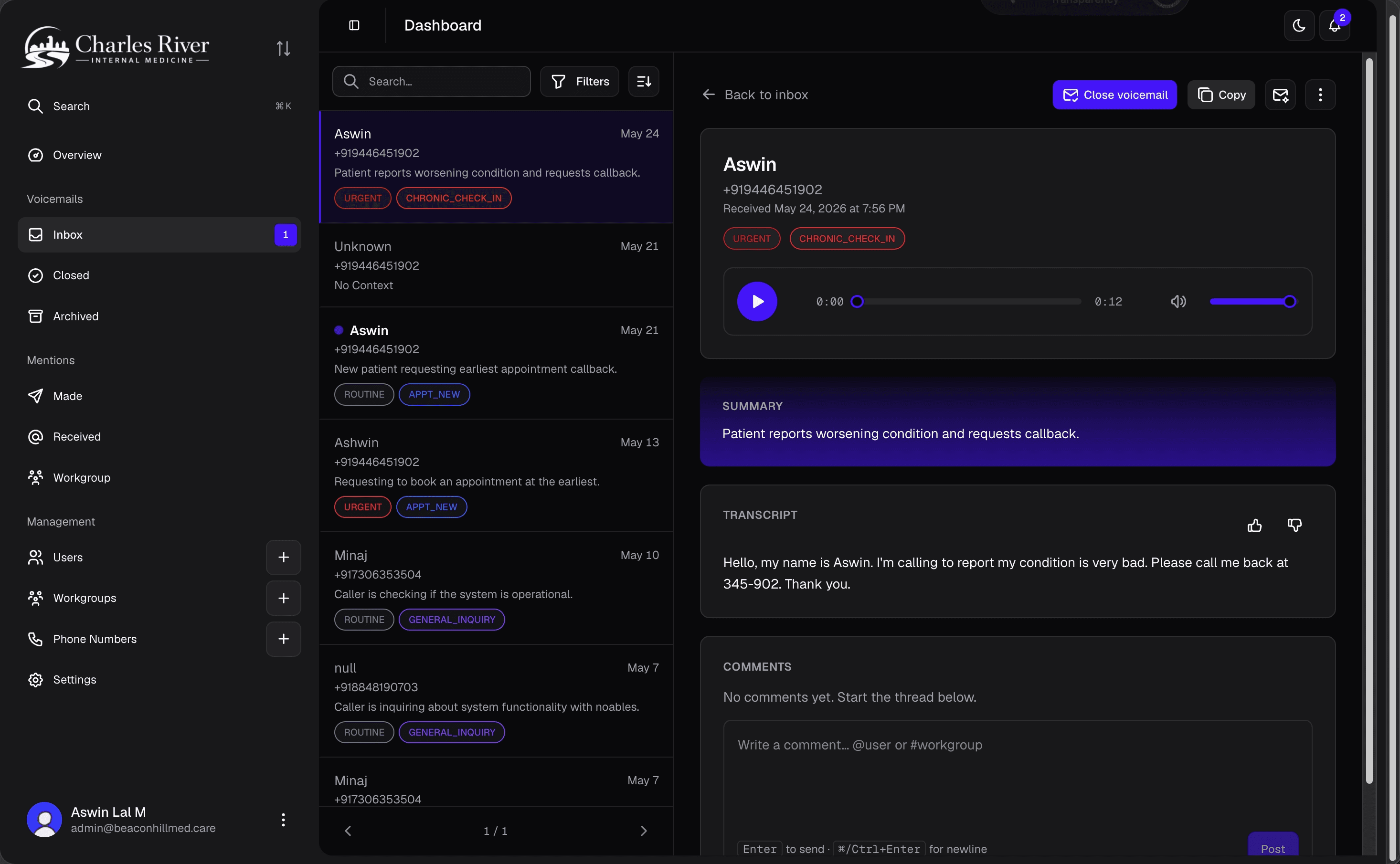
Clicking a row opens the voicemail. You'll see:
- The audio player — waveform with playback controls, speed selection, and the ability to scrub. The player remembers where you left off.
- The transcript — what the AI heard. Inaccurate? Click any word to flag a correction; over time the AI gets better for your practice.
- Priority and category badges — one of each, drawn from the workgroup's tables. The AI sets starting values; click a badge to swap.
- Tagged workgroup and user — the workgroup and the individual teammate the AI assigned this voicemail to, based on the transcript and your team's designations and misspellings. Transfer it elsewhere if the AI picked wrong.
- Comments and mentions — a thread where your team coordinates on this voicemail. Mentioning a teammate or workgroup is what notifies them; see Mentions.
Taking action
You can act on a voicemail from a list row or from the open detail view:
- Transfer — change who handles this voicemail. Click the Workgroup or User cell in a list row to change one, or use Transfer in the detail view's more-actions menu (three dots) to change both. Transfer is a routing change, not a notification — to actually ping someone, mention them in a comment.
- Change priority or category — click the badge in a list row or in the detail view to swap to a different label from the workgroup's tables.
- Comment — drop a comment in the thread. Use
@nameto mention a teammate and#workgroupto mention a workgroup; mentioned people get notified. See Mentions. - Reply to the patient — opens the Send text sheet, where you can draft a message. When you send, the patient gets an SMS with a magic link to a secure portal where they can read your reply and message back; their replies land in the same thread. Requires the practice to have Two-way patient messaging enabled. See Two-way patient messaging.
Status changes (mark read or new, close, archive, restore) live in the same row three-dots menu and the detail view. See Where voicemails live below.
Where voicemails live: Inbox, Closed, Archived
The Voicemails item in the sidebar expands into three lists. A voicemail's status determines which list it shows up in:
- Inbox — voicemails that still need attention. Each one is either new (never opened by anyone on the team — the pulsing dot is next to the caller) or read (someone on the team has at least glanced at it; the row is muted). Toggle Unread only in the filters to focus on just the new ones.
- Closed — voicemails the team has handled. Patient was reached, request was fulfilled, nothing more to do.
- Archived — voicemails you've moved out of the working set without resolving them — spam, wrong number, anything already handled outside Novapulse.
To change a voicemail's status, use the row's three-dots menu or the actions inside the voicemail detail view. You can mark anything read or new, close it, archive it, or restore it from the Closed or Archived list back to the Inbox.
Closing a voicemail feeds the Desk analytics — the closed count, the average response time, and the hours saved estimate are all driven by what's been closed. Archived voicemails are excluded from those metrics, so use Archive for "remove from view," not for "we handled this."